Stream on your own YouTube channel
Keep the broadcast with your club, team or tournament content and share it with your existing YouTube audience.
Score the match in CricLogs, open Go Live and broadcast from your phone. Choose your own YouTube channel or stream through the CricLogs YouTube channel, so supporters can watch the cricket wherever they are. Core streaming is free; optional Pro adds unlimited live streaming and advanced Insights.
This match was streamed to YouTube using CricLogs. Playback begins at a match highlight, so you can see what supporters experience when a local game goes live.
Prefer YouTube? Open this sample cricket stream on YouTube.
The streaming controls live inside the same CricLogs match flow you use for scoring. Set up the match first, then choose where your broadcast should go. For step-by-step instructions on broadcasting in ultra-high definition, read how to live stream cricket in 4K on YouTube, or check the ground-side cricket live streaming setup guide. For a quick mobile walkthrough in Hindi, see cricket score live streaming kaise kare mobile se.
Download the Android app from Google Play, open it and log in to your CricLogs account.
Create the cricket match, enter the teams and match details, and begin scoring from the match screen.
After the match has started, go to the Go Live tab from the cricket match screen.
Connect your own YouTube channel or select the CricLogs YouTube channel as the destination.
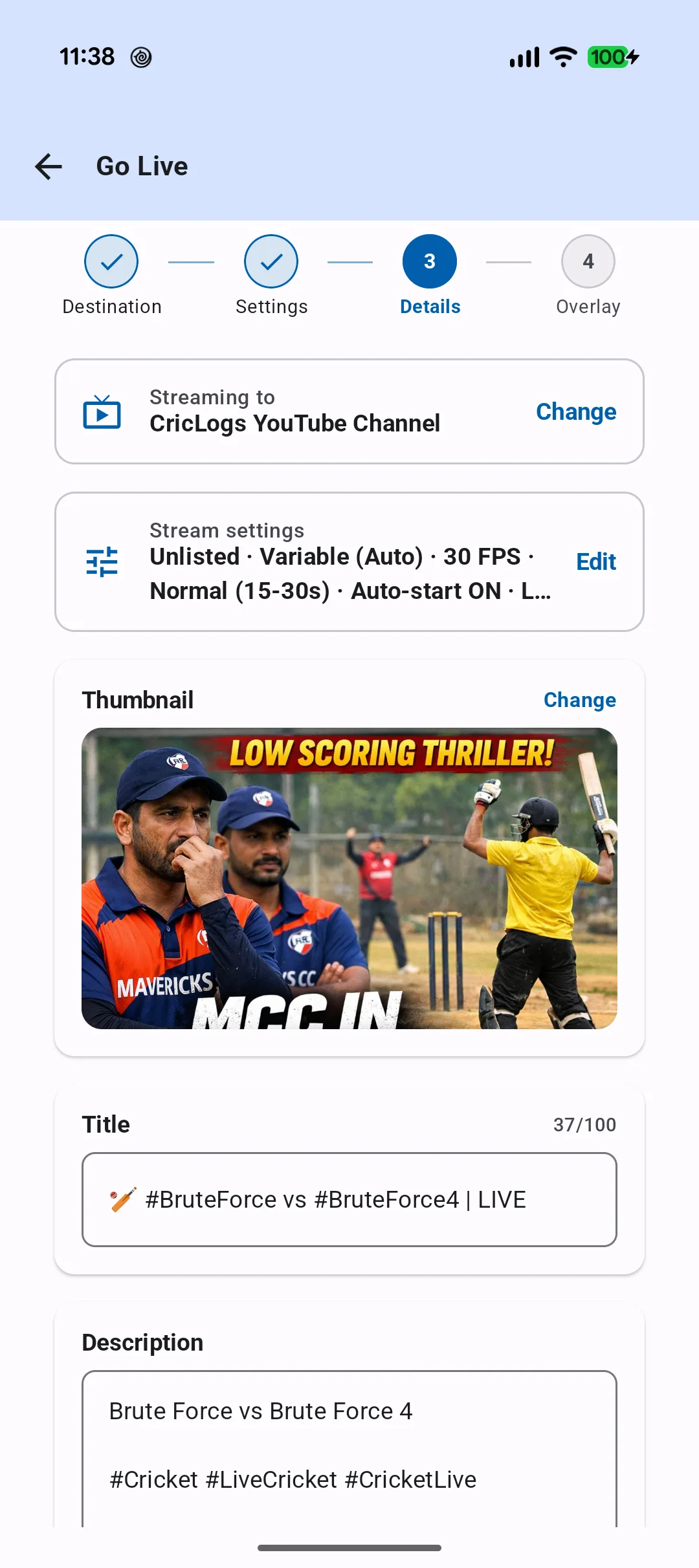
Confirm visibility, quality, title, thumbnail and overlay. Start the broadcast, then share the YouTube link with your cricket community.
The Go Live setup keeps the important choices together: destination, stream settings, title, thumbnail and overlay. Review each stage, make the match easy to recognize on YouTube, and start when the players and scorer are ready.
Give a local match the reach of a broadcast without separating streaming from the match-day workflow.
Start from the same match screen used for scoring instead of moving between unrelated tools.
Families, teammates and supporters can open a familiar YouTube link on their preferred device.
Use it for club fixtures, weekend games, school cricket and grassroots tournaments.
Yes. Core local cricket streaming to YouTube is free with CricLogs. Optional Pro adds unlimited live streaming and advanced Insights.
Yes. Start scoring the match in CricLogs, open Go Live from the match screen, choose a YouTube destination and begin the broadcast.
No. You can choose your own YouTube channel or stream through the CricLogs YouTube channel from the Go Live flow.
Yes. The Go Live option is available from the cricket match screen after you start scoring the match.
The Go Live flow lets you select the destination and review stream settings, visibility, title, description, thumbnail and overlay before starting.
Supporters watch the broadcast on the selected YouTube channel using the live video link you share.
Download CricLogs, start scoring and bring supporters closer to the game with YouTube live streaming.
Get CricLogs on Google Play