How to live stream cricket matches on YouTube
Everything you need to broadcast a local, school, college, corporate, academy, turf or community cricket match to YouTube using a smartphone, a tripod and a cricket scoring app — including the camera position that does most of the work, the settings that stop a stream dropping, and a checklist to run through before every toss.
The short version
- Enable live streaming on your YouTube channel — verify the phone number and allow up to 24 hours.
- Mount the phone behind the wicketkeeper, in line with the pitch, at about 5 feet.
- Shade the phone with a clip-on umbrella and keep a power bank connected.
- Use Wi-Fi or a dedicated 5G SIM — never a hotspot from a second phone.
- Stream at 1080p 60 FPS on Normal latency, or drop to 720p if upload speed wobbles.
- Score and go live from one app — CricLogs composites the score overlay into the broadcast.
Who this guide is for
Live streaming used to mean a production van and a camera crew. It does not any more. If you organise cricket that a few dozen people care about, a phone on a tripod is enough to give players, parents, friends and sponsors something worth watching.
This guide is written for anyone running:
- Local tournaments
- Corporate leagues
- School cricket
- College & university
- Cricket academies
- Apartment & society leagues
- Club cricket
- Gully cricket
- Junior cricket
- Women's cricket
- District association matches
- Turf & box cricket
- Charity matches
- Veterans cricket
The setup is the same in every case. What changes is the ground, the light and how long you need the phone to survive — and those are the three things most first streams get wrong.
The gear you actually need
Almost everyone overspends on their first setup and then discovers the expensive part was never the camera. Here is the whole kit, and what each piece is genuinely solving.
| Item | Why it matters | Skip it if… |
|---|---|---|
| Smartphone | Your camera and your encoder. 1080p at 60 FPS with optical stabilisation is the target; plenty of mid-range Androids clear that bar. | Never — this is the one thing you cannot work around. |
| Tripod | A shaking frame is the fastest way to lose viewers. Height and weight matter far more than brand. | Never. Even indoor box cricket needs a stable mount. |
| Power bank | Streaming drains a battery in roughly 90 minutes. Charging while recording is normal, not a fallback. | You are streaming a single short innings and start at 100%. |
| Clip-on umbrella | Keeps the phone out of direct sun. This single accessory prevents more dropped streams than anything else on the list. | You only ever stream indoors or under floodlights. |
| Phone cooler | An active cooler holds the frame rate steady through a full day of back-to-back matches. | You stream one T20 at a time in cool weather. |
| Internet | Ground Wi-Fi or a dedicated 4G/5G SIM in the streaming phone. Stability beats headline speed. | Never. |
| Scoring & streaming app | Turns a raw camera feed into a broadcast — score overlay, commentary, thumbnail, YouTube destination. | You are happy with a plain video and no score on screen. |
Beginner setup vs. full-day setup
You do not need the good tripod on day one. A basic aluminium tripod in the ₹800–₹1,200 range (roughly $10–$15) is genuinely fine for school grounds, turf, box cricket and indoor tournaments, where wind is not a factor and matches are short.
Once you are streaming regularly on open grounds, upgrade to something heavier — around 5.5 feet, aluminium, with a proper pan head and locking legs. The Digitek DTR-550 LW and the Syvo WT-3130 are both commonly used for this and hold up outdoors. What you are buying is 360° rotation, height, and legs that do not fold in a gust.
Very light tripods with thin legs, plastic joints and weak locks. On an open ground they wobble in the wind and can tip over completely — usually with your phone on top. If you can lift it with two fingers, it is not a cricket tripod.
A useful trick regardless of tripod: hang your kit bag from the centre column. The extra weight low down does more for stability than another ₹1,000 of tripod.
Prices are approximate India retail and drift over time.
Where to put the camera
This is the highest-leverage decision in the entire guide. Camera position does more for how a local stream looks than any amount of gear, and it costs nothing to get right.
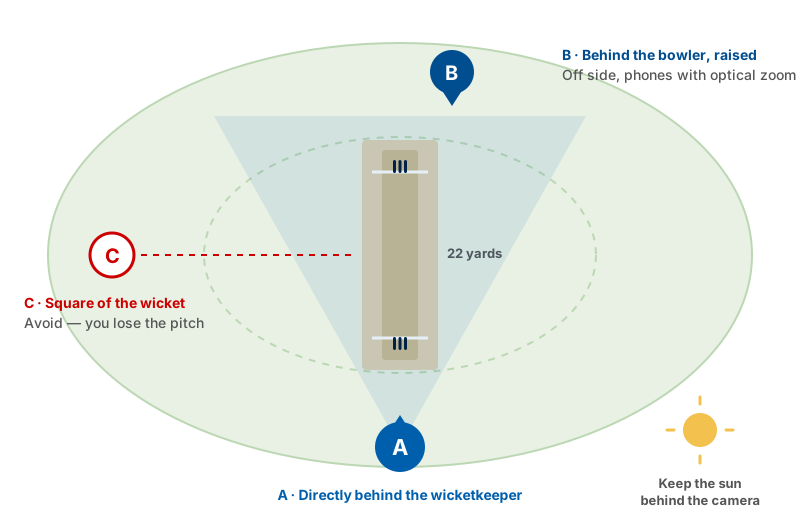
Position A — directly behind the wicketkeeper
Set the tripod in line with the pitch, behind the wicketkeeper, at roughly eye height or a little above. From there, one static frame gives you:
- The entire pitch in shot, end to end
- The striker always in frame, with no panning
- The bowler's full run-up
- The familiar television angle viewers already know how to read
- Enough width to follow lofted shots without chasing them
The reason this position wins is that it barely needs an operator. If nobody is standing by the tripod for an over, the stream still looks correct.
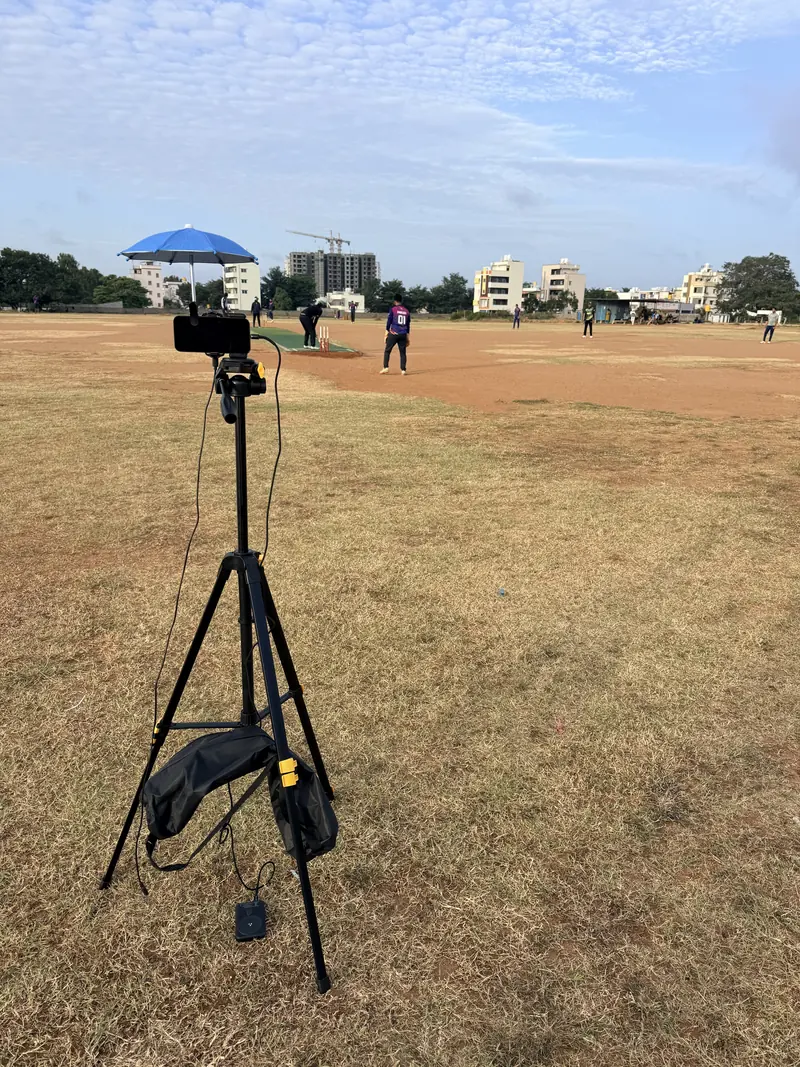
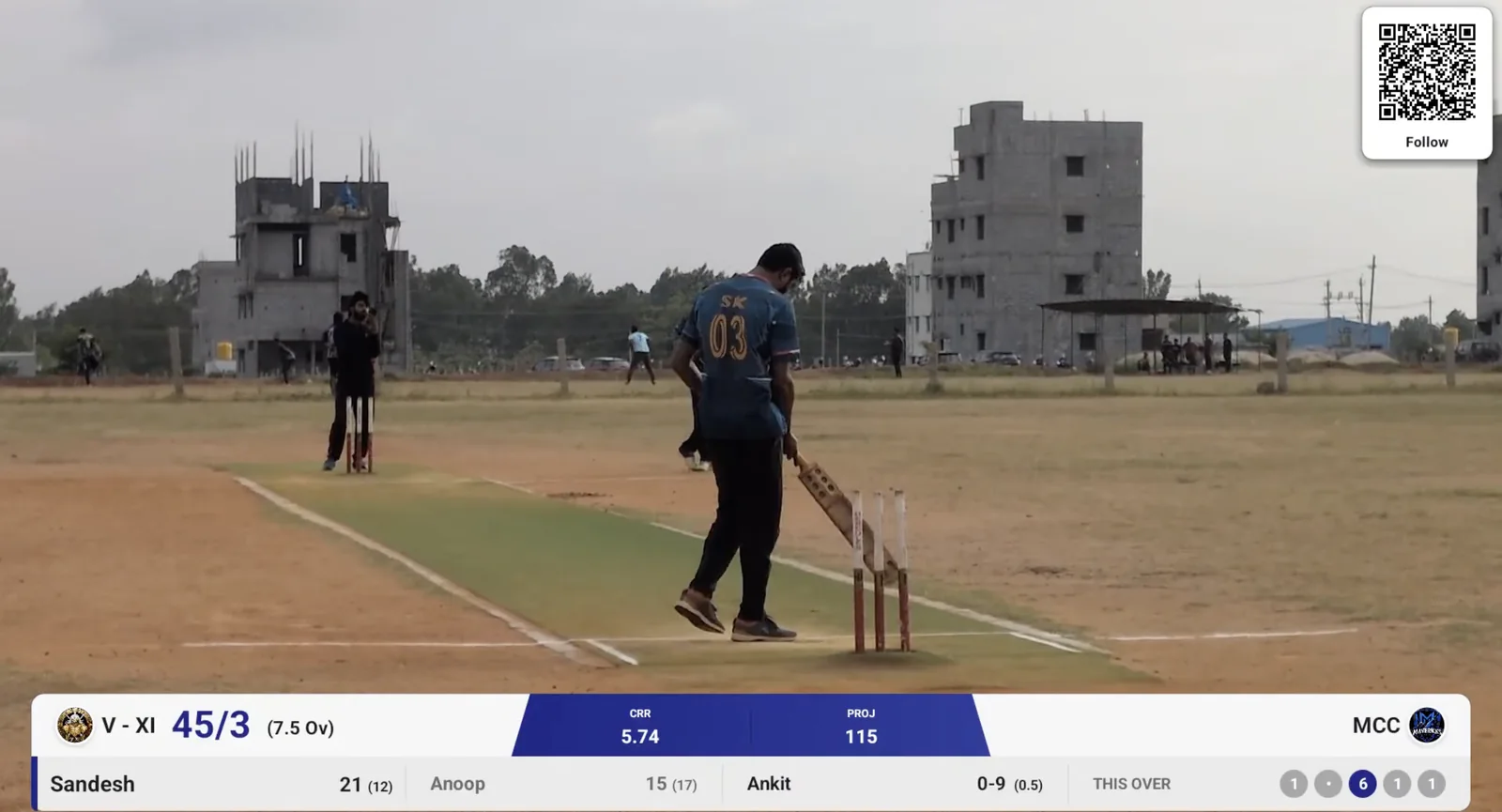
Notice how little of the frame is wasted. Both sets of stumps, the bowler at the top of his mark and the fielders on either side all fit without zooming, which is exactly why this position survives an entire innings without anyone touching the tripod.
Position B — behind the bowler's end, raised
If you are on a premium phone with real optical zoom, there is a second option: set up beyond the bowler's end, slightly to the off side, with the tripod at full height. It gives a more television-style perspective and keeps both batters visible.
The catch is that it depends on optical zoom. Digital zoom on a mid-range phone turns this angle into a soft, noisy mess — so if you are not sure which one you have, use position A.
Position C — square of the wicket (skip it)
Square of the wicket looks fine to the eye and terrible on a stream. You lose the pitch, the bowler's run-up leaves the frame, and every delivery needs a pan. It is the most common first-time mistake.
Check where the sun will be, not where it is. A frame that looks perfect at 9am can be shooting straight into the sun by noon. Where the ground allows it, keep the sun behind the camera — and if the match runs across the afternoon, work out which end stays lit before you commit the tripod.
Heat, power and the 8-hour problem
The most common reason a local cricket stream dies is not internet. It is a hot phone.
Most people assume streaming itself causes the overheating. It contributes, but direct sunlight is the bigger factor by a wide margin. A phone sitting in open sun for a few hours will start throttling regardless of what it is doing, and you will see it as frame drops, a dimmed screen, faster battery drain, and eventually a stream that stops on its own.
Shade first, cooling second
A clip-on umbrella that mounts on the tripod is the single best accessory you can buy for outdoor cricket streaming. Its whole job is keeping the phone out of the sun, and on an afternoon match it makes the difference between a stable broadcast and a frustrating one.
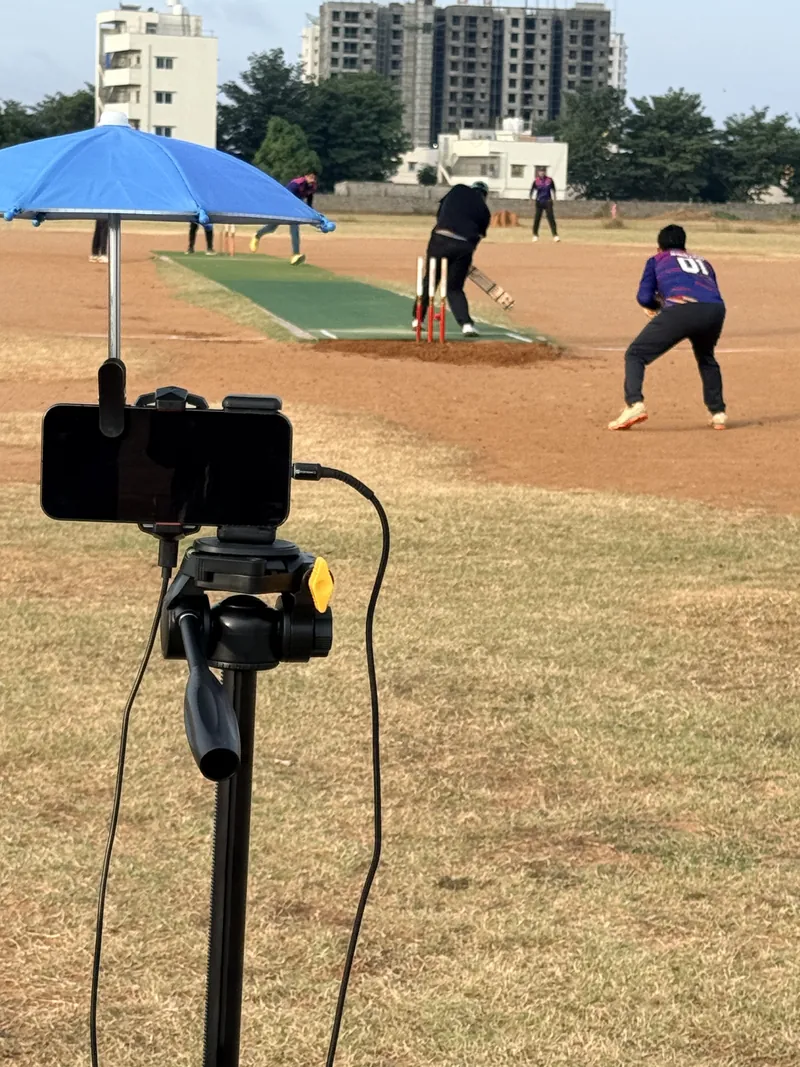
If you stream often, add a phone cooler as well. An active cooler holds the temperature down, keeps the frame rate steady and lets you run back-to-back matches without a cooldown break between them.
Sizing the power bank
| You are streaming | Power bank | Notes |
|---|---|---|
| One T20 (3–4 hours) | 10,000 mAh | Comfortable with the phone starting near full. |
| Two matches back to back | 20,000 mAh | Or two 10,000 mAh banks so you can swap without unplugging. |
| Full-day tournament (6–10 hours) | 20,000 mAh minimum | Use a bank that supports pass-through charging and a short, good-quality cable. |
Keep the cable short and route it so nobody walks into it. A cable snag mid-over has ended more streams than any technical fault.
Internet and upload speed
Stability matters more than speed. A rock-steady 8 Mbps upload will give you a better broadcast than a connection that peaks at 40 Mbps and collapses every few minutes.
That said, you do need a floor. These are practical targets measured at the ground, on upload, not download:
| Stream quality | Video bitrate | Upload speed to aim for |
|---|---|---|
| 720p 30 FPS | ~2.5 Mbps | 5 Mbps sustained |
| 720p 60 FPS | ~4 Mbps | 7 Mbps sustained |
| 1080p 30 FPS | ~4.5 Mbps | 8 Mbps sustained |
| 1080p 60 FPS | ~6 Mbps | 10–12 Mbps sustained |
The headroom is deliberate. Aim for roughly double your bitrate so a temporary dip does not immediately become buffering for every viewer.
Use Wi-Fi or a dedicated SIM — not a hotspot
A very common beginner setup is one phone acting as a hotspot and a second phone doing the streaming. It works, but it is the worst of the three options. Every packet takes an extra hop, which brings:
- Higher latency
- Random disconnects when the hotspot phone sleeps or switches towers
- Two batteries draining instead of one
- Two phones heating instead of one
Put the SIM in the streaming phone, or connect it to ground Wi-Fi. In India, both Jio 5G and Airtel 5G generally hold up well for cricket streaming — but test at the actual ground, because coverage at the boundary of a suburban field is not the coverage on the main road outside it.
Run a 5-minute unlisted test stream from the exact tripod position a day or two before a big tournament. It is the only way to find out that the corner of the ground you picked has one bar of signal.
Resolution, frame rate and latency
For local cricket, the defaults below are a good place to start and rarely need changing.
| Setting | Use | Why |
|---|---|---|
| Resolution | 1080p | Keeps the ball and the scoreboard readable. Drop to 720p if upload speed fluctuates. |
| Frame rate | 60 FPS | Cricket is a fast-moving ball on a wide frame. 60 FPS is noticeably cleaner than 30. |
| Latency | Normal | Gives YouTube the deepest buffer, which is what keeps the stream alive on a shaky connection. |
| Orientation | Landscape | Matches how the ground actually looks. Use portrait only for turf, box cricket or vertical-first audiences. |
| Zoom | None, or optical only | Digital zoom throws away resolution before the encoder ever sees the frame. |
On Normal latency, expect viewers to be roughly 30 to 60 seconds behind the live action. That is completely fine for local cricket, and the trade is worth it — Low and Ultra-low latency shrink the buffer, which is exactly what you do not want on a mobile connection at a cricket ground. Only reach for lower latency if you are actively reading live chat during the match.
A steady 720p stream beats a 1080p stream that buffers. If your speed test at the ground comes in under 8 Mbps upload, start at 720p and stop worrying about it.
Audio and wind noise
Outdoor cricket has a wind problem. An open ground with a phone mic on a five-foot tripod picks up every gust, and wind noise is the single fastest way to make a stream unwatchable — viewers forgive a soft picture long before they forgive a roaring mic.
The traditional fix is an external microphone with a foam or fur windshield, which works but adds cost, cabling and another thing to forget in the car.
Voice Isolation in CricLogs
CricLogs handles this in software. Turn on Voice Isolation before you go live and it suppresses wind and background ground noise while keeping commentary intelligible — no external mic required for a typical local match. We have not seen the same feature in other cricket scoring and streaming apps, though that is our own comparison rather than a certified claim.
If you are doing dedicated commentary for a final or a showcase match, an external mic still gives you the best result. For everything else, Voice Isolation is enough.
Enabling YouTube live streaming
Before your first broadcast, YouTube needs the channel to be eligible. There are four requirements:
- A verified channel — verify with a valid phone number.
- No live streaming restrictions in the previous 90 days.
- Good standing — no active copyright or Community Guidelines strikes.
- Time — first-time activation can take up to 24 hours, so do not do this on match morning.
Turning it on
-
1
Open YouTube Studio
Sign in with the account that owns the channel you want the matches on.
-
2
Choose Create → Go Live
This starts the eligibility flow rather than an actual broadcast.
-
3
Verify your phone number
A one-time code by SMS or call. This is the step most channels are missing.
-
4
Wait for activation
Up to 24 hours. Do this at least a day before the tournament starts.
-
5
Connect the channel in CricLogs
Sign in to the same Google account from the Go Live screen and the channel becomes selectable as a destination.
You do not need 1,000 subscribers — and you do not need 50 either. That subscriber minimum applies to going live from inside the YouTube mobile app. Streaming through a third-party app like CricLogs uses YouTube's encoder path, which only requires a verified channel in good standing. YouTube does revise these rules, so check YouTube Help if anything looks different when you set up.
No channel of your own yet? CricLogs can also broadcast the match on the CricLogs YouTube channel, so you can run your first tournament without setting anything up.
Going live with CricLogs
Scoring and streaming happen in the same place, which is the point — the score overlay on the broadcast is fed by the same ball-by-ball scoring you are already doing. There is no second device, no laptop, no OBS, and no capture card.
-
1
Create or schedule the match
Set it up in advance for a tournament, or create it on the spot.
-
2
Add both teams
Enter the playing squads. Correct player names are what make the overlay and the scorecard useful afterwards.
-
3
Start scoring
Begin the match from the scoring screen. Streaming unlocks once the match is live.
-
4
Tap Go Live
Admins and scorers see the Go Live button on the match screen.
-
5
Choose the destination
Your own YouTube channel, or the CricLogs live channel.
-
6
Set the title, description and thumbnail
Do this before you start, not after. It is what people see in search and in their subscriptions feed.
-
7
Pick an overlay and start streaming
Choose a score overlay theme, enable Voice Isolation, then tap Start Streaming and share the link.
What you get on the broadcast
- 20+ score overlay themes showing team names, score, overs, batter, bowler, tournament branding and sponsor logos.
- AI commentary in several styles — Professor, Pro, Firebrand and Entertainer — which keeps a match watchable when nobody is free to commentate.
- Portrait mode alongside landscape, for turf and box cricket and for vertical-first viewers.
- AI thumbnail prompts that work with ChatGPT or Gemini, so a match thumbnail takes a couple of minutes rather than an evening.
Because the same app runs the tournament, the fixtures, points table, player statistics and following/reactions all stay attached to the matches you streamed. There is more detail on the live streaming feature page and on the cricket scoring app page. Looking to broadcast in ultra-high definition? Read our step-by-step walkthrough on how to live stream cricket in 4K on YouTube.
Core YouTube live streaming is free. The optional Pro tier adds unlimited live streaming and advanced Insights.
Copyright claims and interruptions
Almost every new streamer runs into this once. A phone near the tripod rings with a film song, or someone plays music between overs, and YouTube's Content ID system picks it up. A few seconds is enough.
The result is a copyright claim on the archived video, which can mean:
- Muted sections where the music was detected
- Ads placed on your video by the rights holder
- Region blocks, or the video being unavailable entirely
- An editing job after the match to trim the flagged section
How to avoid it
- Keep personal phones away from the streaming setup.
- Put nearby phones on silent or Do Not Disturb.
- Ask organisers not to play music near the camera — this is the one that catches turf and box cricket venues, where a speaker is often part of the setup.
- If you want music for the break, use YouTube's Audio Library or another licensed source.
Silence the streaming phone too
Before every match, enable Do Not Disturb on the phone that is streaming and turn off incoming calls, WhatsApp, SMS, email and any other notification that can interrupt or appear on screen. An incoming call at the wrong moment can drop the broadcast entirely — and it will happen during a wicket, not during a dot ball.
The match-day checklist
Run through this before every toss. It takes two minutes and saves the whole broadcast.
Equipment
- Phone charged and power bank connected
- Tripod legs locked and centre column tightened
- Kit bag hung from the tripod for ballast
- Umbrella clipped on and shading the phone
- Phone cooler attached and running
- Camera lens wiped clean
Position
- Tripod in line with the pitch, behind the keeper
- Full pitch and both sets of stumps in frame
- Sun behind the camera, not in front of it
- Cable routed clear of foot traffic
Internet
- Wi-Fi or dedicated SIM connected — no hotspot
- Upload speed tested from this exact spot
- Resolution matched to the speed you measured
App and phone
- Teams created and playing XI confirmed
- Stream title and description set
- Thumbnail uploaded
- Score overlay selected
- Voice Isolation enabled
- Do Not Disturb on, notifications off
- Other phones moved away from the camera
Start the stream before the toss, not after. It gives you a few minutes of buffer to spot a problem while nothing important is happening, and the toss itself is content people watch.
Fixing problems mid-stream
What to do when something goes wrong and the match is not going to wait for you.
| Symptom | Most likely cause | Fix now |
|---|---|---|
| Stream keeps buffering for viewers | Upload speed below what the bitrate needs | Drop to 720p. It is far better than an unwatchable 1080p. |
| Stream stops on its own | Phone thermal throttling, or the connection dropping | Get the phone into shade, check the umbrella has not shifted, then restart the broadcast. |
| Video looks choppy or juddery | The phone is too hot to hold 60 FPS | Shade and cool it. If it persists, switch to 30 FPS for the rest of the innings. |
| Audio is all wind | Voice Isolation is off, or the mic is facing into the wind | Enable Voice Isolation and rotate the phone slightly so the mic is not in the direct gust. |
| Overlay score is behind the play | Scoring has fallen behind the match | Catch the scoring up. The overlay follows the score, not the video. |
| Picture is soft or hazy | Fingerprints or dust on the lens, or digital zoom | Wipe the lens. Reset zoom to 1×. |
| Frame drifted off the pitch | Tripod head loosened, or someone knocked a leg | Re-tighten the pan head and re-level between overs, not mid-over. |
| Battery dropping despite the power bank | Cable or bank cannot supply more than the phone is using | Swap the cable first — it is usually the cable. Dim the screen to buy time. |
Common mistakes to avoid
- Using a lightweight tripod on a windy, open ground
- Leaving the phone in direct sunlight all afternoon
- Forgetting the power bank, or bringing a cable that cannot keep up
- Streaming over a hotspot from a second phone
- Leaving the ringtone and notifications on
- Setting up square of the wicket instead of behind the keeper
- Using digital zoom to "get closer"
- Starting the stream after the toss instead of before it
- Never cleaning the camera lens
- Not testing upload speed from the actual tripod position
- Writing the title and thumbnail after the match has started
After the final ball
The stream is only half the value. What you do in the ten minutes after the match decides whether anyone finds it next week.
- Fix the title. "Team A vs Team B — Ghatkopar Corporate League 2026, Semi-Final" gets found. "Live Cricket Match" does not.
- Write a real description. Tournament name, both team names, venue, date, and the match result. This is what search actually reads.
- Add it to a playlist per tournament, so someone who watches one match is one click from the rest.
- Trim the dead start if you went live twenty minutes before the toss.
- Share the scorecard alongside the video. The CricLogs scorecard gives people who missed it a reason to open the stream.
- Tag your sponsors. If a local business paid for the tournament, a named mention in the description is the easiest thing you will ever give them.
Consistency beats production value here. The local streamers who build an audience are not the ones with the best gear — they are the ones whose stream is up, on time, every single match.
Watch a real cricket stream
This is a full local match broadcast to YouTube with exactly the setup described above — one phone, one tripod, CricLogs doing the scoring and the overlay.
Frequently asked questions
Can I live stream a cricket match using only a phone?
Yes. A smartphone that records 1080p video, a sturdy tripod, a power bank and the CricLogs app are enough to broadcast a full match to YouTube. No camera crew, capture card or laptop is required.
Do I need 1,000 subscribers to live stream cricket on YouTube?
No. The subscriber minimum applies to live streaming from inside the YouTube mobile app. Streaming through a third-party app such as CricLogs uses YouTube's encoder path, which needs only a verified channel with no live streaming restrictions in the past 90 days.
How much internet speed do I need to live stream cricket?
Plan for about 5 Mbps sustained upload for 720p, 8 Mbps for 1080p30 and 10 to 12 Mbps for 1080p60. Consistency matters more than peak speed, so leave roughly double the headroom your bitrate needs.
Where should the camera be placed for cricket streaming?
Directly behind the wicketkeeper, in line with the pitch, at about 5 feet. That single position keeps the full pitch, the striker and the bowler's run-up in frame and needs almost no panning.
Is live streaming cricket on YouTube free?
YouTube does not charge for live streaming. Core YouTube live streaming in CricLogs is free too; the optional Pro tier adds unlimited live streaming and advanced Insights.
Do I need OBS to stream a cricket match?
No. OBS runs on a laptop and needs a capture setup at the ground. CricLogs streams directly from the phone that is recording, with the score overlay already composited into the broadcast.
Why does my cricket live stream keep dropping or buffering?
The usual causes are an unstable mobile hotspot, congested cell data at a busy ground, or the phone thermally throttling in direct sunlight. Shade the phone, switch off the hotspot in favour of a dedicated SIM or Wi-Fi, and drop to 720p when upload speed fluctuates.
How do I stop wind noise ruining cricket commentary?
Enable Voice Isolation in CricLogs before going live. It reduces wind and background ground noise on the fly, so an external microphone is usually unnecessary for local matches.
Can I stream a school or corporate cricket tournament?
Yes. Schools, colleges, academies, corporate leagues and apartment societies use the same setup. CricLogs also handles fixtures, points tables and multiple admins so a whole tournament runs from one place.
Will background music at the ground get my stream copyright claimed?
It can. YouTube's Content ID system can detect even a few seconds of recorded music picked up by the phone microphone, which may mute sections of the archived video. Keep phones on silent near the camera and avoid playing music close to the streaming device.
Can I stream in portrait mode?
Yes. CricLogs supports portrait as well as landscape. Portrait suits turf and box cricket, where the playing area is narrow, and it travels better to social clips. For a full-size ground, landscape is still the right choice.
Can I stream on my own YouTube channel?
Yes. Connect your channel in the Go Live flow and broadcast there, so the match sits with your existing club or tournament content. If you do not have a channel, you can stream on the CricLogs channel instead.